Transactions
Review your organization's billing history and learn what each transaction row means.
The Transactions section is your organization's running history of credit movements — every top-up that added credit and every charge that spent it. Use it to see where your credit went and to confirm that top-ups and vouchers landed.
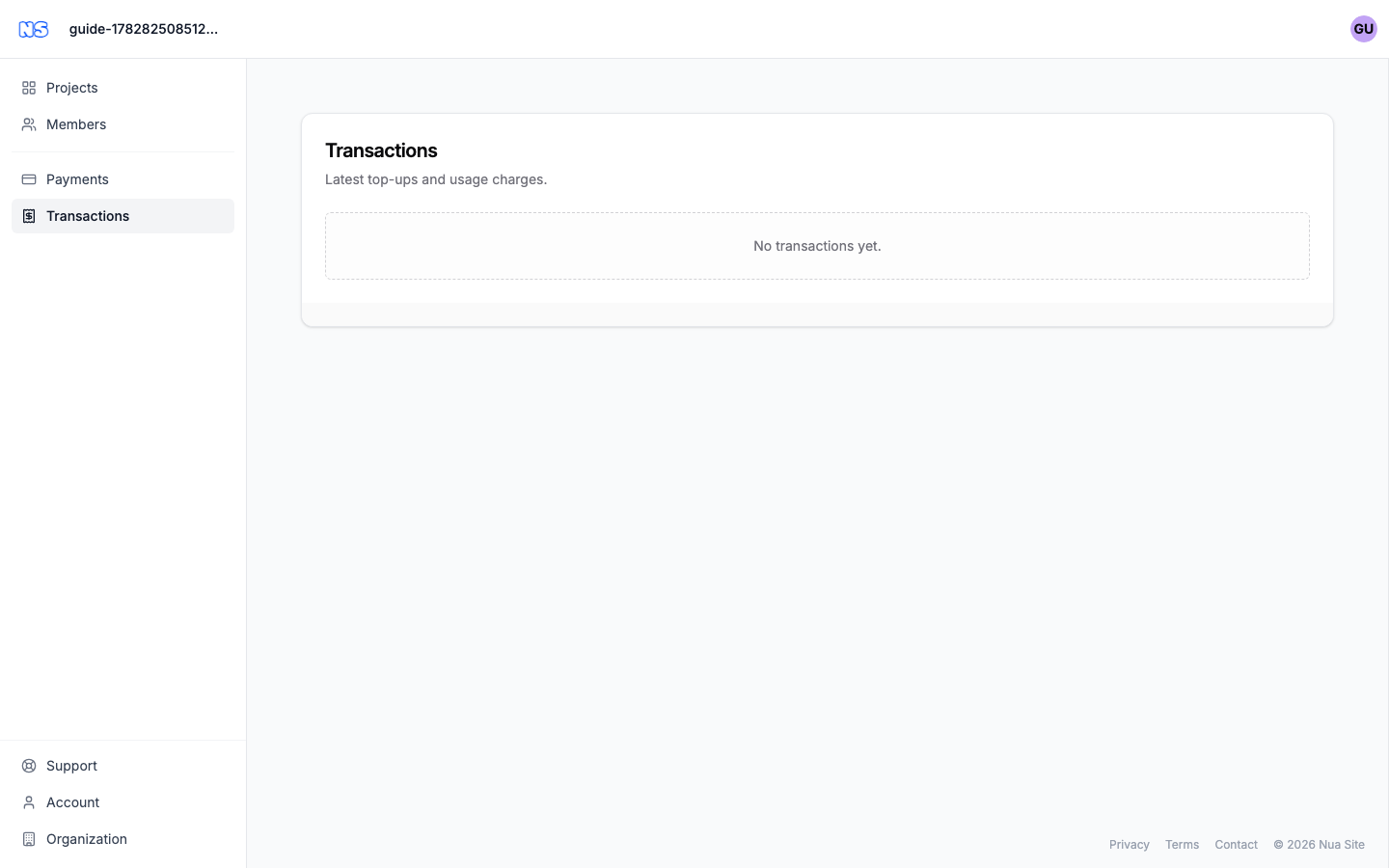
Opening Transactions
- Choose Transactions from the dashboard's left sidebar.
- Alternatively, from the Payments section click View transactions.
The list shows your most recent activity first, described as Latest top-ups and usage charges.
Note: Transactions is available to admins and owners. If you do not see the section, ask an admin for access. For credit and top-ups, see Credit and top-up.
Reading a transaction row
Each row describes one credit movement. From left to right you will see:
- Direction icon — an up arrow for credit added to your balance, a down arrow for credit spent.
- Description — what the transaction was for. Top-ups read as Credit top-up and charges as Usage charge unless a more specific description is recorded.
- Project link — if the transaction relates to a specific project, a Project:
link appears that takes you to that project. - Date and time — when the transaction happened.
- Amount — shown in green with a
+when credit was added, or in red with a-when credit was spent. - Badges — a funding-source badge (where relevant) and a status badge.
Funding source badges
When a transaction is tied to a particular source of credit, a coloured badge shows which pool it touched:
| Badge | Meaning |
|---|---|
| Grant | Credit from a project's monthly grant allowance included with your hosting plan. |
| Purchased | Credit you bought through a top-up or voucher. |
Rows without a specific funding source show no funding badge.
Status badges
Every transaction shows a status so you know whether it has settled:
| Status | Meaning |
|---|---|
| completed | The transaction has gone through. |
| pending | The transaction is still being processed. |
| failed | The transaction did not go through. |
Tip: Just topped up but still see pending? Give it a few seconds — top-ups usually settle to completed shortly after payment. See the processing screen described in Credit and top-up.
When there is nothing to show
If your organization has not had any credit activity yet, the section simply reads No transactions yet. Once you make your first top-up or your projects start using credit, rows will appear here automatically.
Note: The list shows your most recent transactions. For a full accounting record, including downloadable invoices, open Manage billing in the Payments section to reach the Stripe customer portal.