A/B testing
Split your traffic between two or more versions of your site and measure which one performs better.
An A/B test sends different visitors to different versions of your site so you can see which one works better. Each version is a branch you've published, and you decide what share of traffic each one receives. Visitors are kept on the same version for their visit (tracked by a cookie), so the comparison stays fair.
This page covers setting up a test, adjusting the traffic split, and reading the current configuration.
Before you start: publish a variant
A/B testing compares deployed branches. Your live site is the main branch; to test an alternative against it, you first publish that alternative as its own branch from an Edit session:
- Open your project and start or open an Edit session.
- Make the changes you want to try.
- In the publish bar, click the small arrow next to the Publish button (Publish as A/B variant).
- Enter a branch name (lowercase letters, numbers and hyphens — for example
redesign) and click Variant.
This publishes your changes to a separate branch without merging to main, so your live site is untouched and the branch becomes available to select in the A/B test. Repeat this if you want more than one alternative.
Open A/B testing
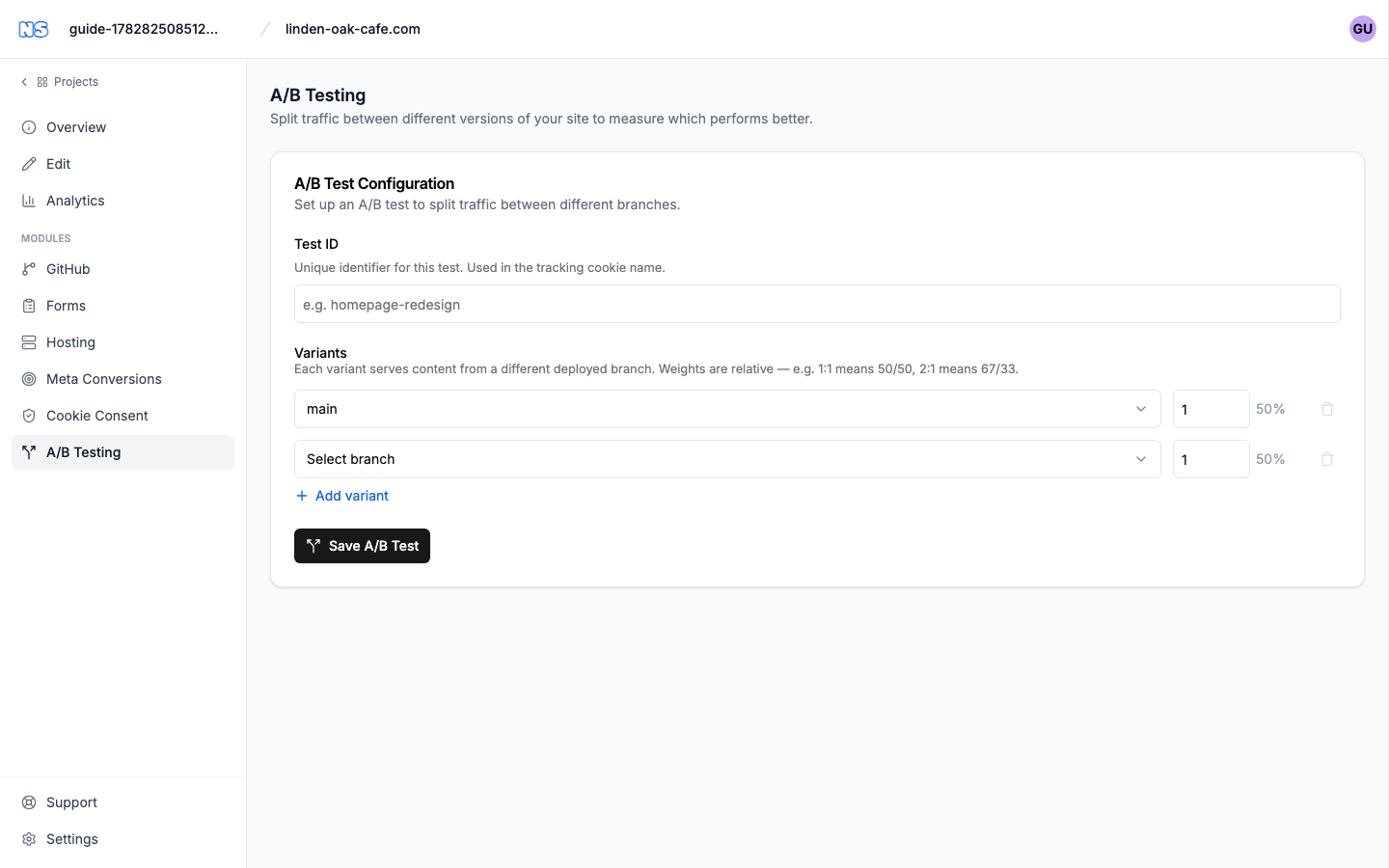
In the project's left sidebar, click A/B Testing. The page explains itself at the top:
Split traffic between different versions of your site to measure which performs better.
If a test is already running, the A/B Test Configuration card notes that it's active and how many variants it has; otherwise it invites you to set one up.
Create or edit a test
1. Name the test
In Test ID, enter a unique identifier using lowercase letters, numbers and hyphens (for example homepage-redesign). This name is used in the tracking cookie that keeps each visitor on the same version.
2. Set up the variants
Under Variants, each row is one version of your site:
- Pick a branch from the dropdown — main is your live site, and your published variant branches appear here too.
- Set a weight — a whole number that controls the share of traffic. Weights are relative, so the actual percentage is shown next to each row and updates as you change the numbers.
Tip: Weights are ratios, not percentages. 1 and 1 means a 50/50 split; 2 and 1 means roughly 67/33. You can use any numbers that give the split you want.
To adjust the test:
- Click Add variant to add another version.
- Click the trash icon to remove a row. A test must keep at least two variants, so the last two can't be removed.
3. Save
Click Save A/B Test. If everything is valid you'll see a green Configuration saved banner.
The dashboard checks a few things and will show an error instead of saving if:
- Two variants use the same branch — each variant must use a different branch.
- A chosen branch isn't deployed yet — publish it first using Publish as variant in an Edit session (see above).
- No variant has a weight above 0 — at least one must receive traffic.
Make the test go live
Saving stores the configuration, but it only takes effect on your next deploy:
Changes will take effect after the next deploy.
To apply it immediately, click Deploy now in the saved banner. From then on, visitors are split between your variants according to the weights.
Read the current configuration
When a test is active, a Current Configuration card shows what's live:
- The Test ID.
- A table of every variant with its Branch, Weight, and the Traffic percentage it receives.
Use this to confirm the split is what you intended.
See which version wins
The A/B test page sets up and shows the traffic split; it doesn't display results on its own. To judge which version performs better, watch your conversions and engagement while the test runs:
- Track conversions and visitor numbers in your project Analytics over the period the test is live.
- Use Session recordings to see how visitors move through each version.
Give the test enough time to gather a meaningful number of visits before deciding. Once you have a winner, you can publish it to main and remove the test.
Stop a test
When a test is active, click Remove at the top of the A/B Test Configuration card and confirm. As the dialog explains:
All visitors will see the main branch. This won't delete the variant branches.
So removing a test simply sends everyone back to your live site — the branches you published stay where they are, ready to reuse. As with saving, the change applies on the next deploy.