Your account
Update your name and email, manage your password and connected sign-ins, review active sessions, and handle organization invitations.
Your account holds the personal details tied to your login — separate from any organization or project. This is where you change your name, update your email, manage how you sign in, and respond to invitations from other teams.
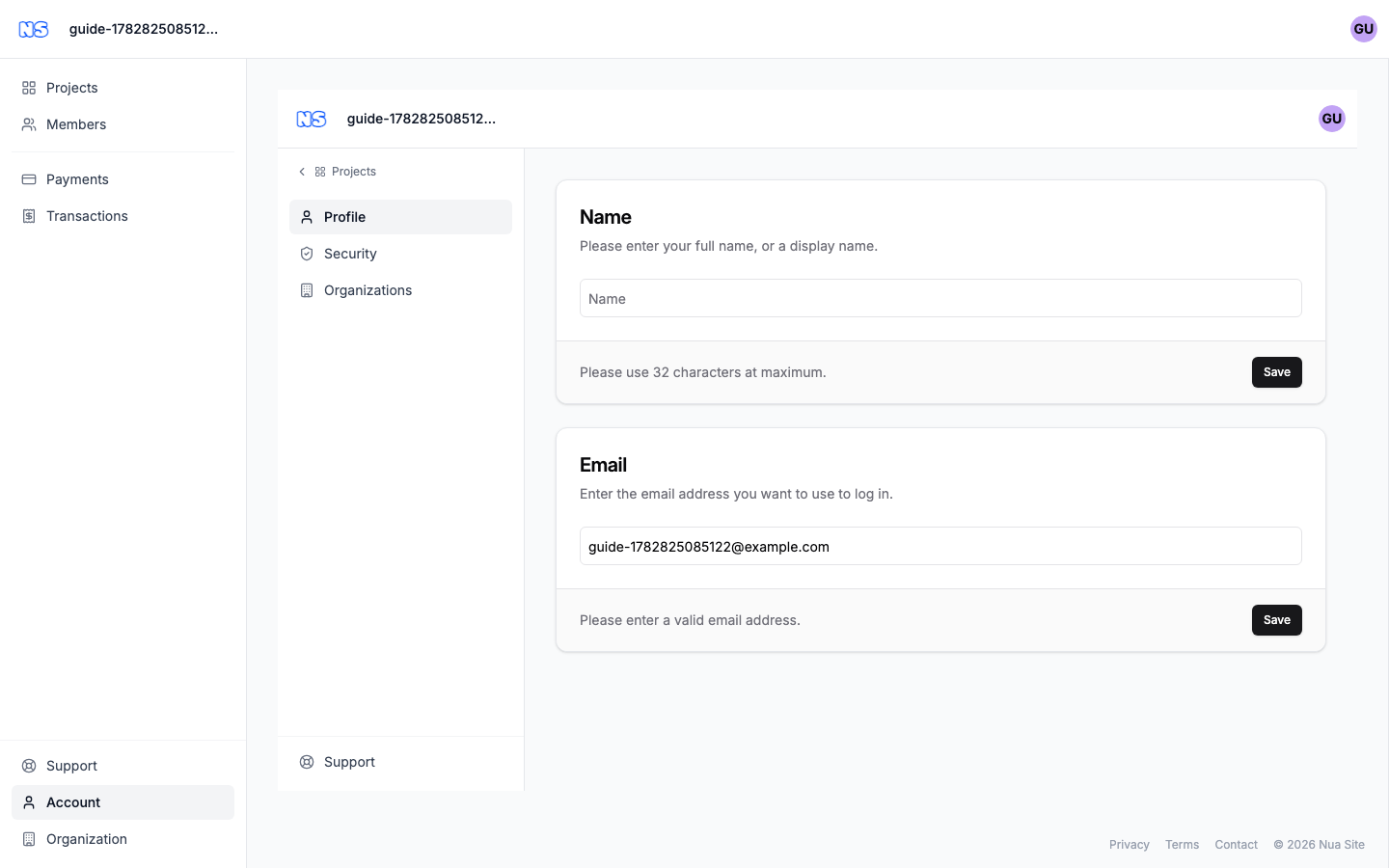
Opening account settings
- In the left sidebar, click Account.
- The account area opens with its own menu down the left side: Profile, Security, and Organizations.
Tip: You can also reach it from the account menu — click your avatar in the top-right corner and choose Account. A blue badge on the Account sidebar item means you have a pending organization invitation waiting under Organizations.
To get back to your sites at any time, click Projects at the top of the account sidebar.
Profile
The Profile tab is for your basic details.
| Field | What it does |
|---|---|
| Name | Your full name or a display name. This is how you appear across the dashboard. |
| The address you use to log in and where we send account messages. |
To update either one:
- Edit the field.
- Click Save.
Note: When you change your Email, we send a verification link to the new address to confirm it's yours. The change takes effect once you click that link — so check your inbox after saving.
Security
The Security tab is where you control how you sign in and which devices have access.
Change Password
Under Change Password, enter your Current Password and a New Password, then Save. If you signed up with GitHub and have never set a password, you'll see a Set Password option here instead.
Connected sign-ins (Providers)
The Providers card shows third-party services connected to your account — for example GitHub. Connect a provider to enable one-click sign-in, or disconnect one you no longer use.
Warning: Don't disconnect your only sign-in method. If GitHub is the only way you log in, set a password first so you don't lock yourself out.
Sessions
The Sessions card lists the devices and browsers where you're currently signed in. If you see one you don't recognize — or you signed in on a shared computer — revoke it here to end that session and protect your account.
Organizations
The Organizations tab covers the workspaces you belong to.
- See every organization you're a member of.
- Respond to invitations from other teams. When someone invites you, it appears here to accept or decline — and you'll see the blue badge on the Account sidebar item until you act on it.
Once you accept an invitation, that organization becomes available in the organization switcher at the top of the dashboard, so you can jump between workspaces. For managing an organization's own settings, members, and billing, see the Organization & billing section of this guide.
Signing out
To sign out, open your account menu (your avatar, top-right) and choose Sign Out. For getting back in, see Signing in.