Form tracking
See how visitors interact with a form — attempts, successes, rejections and spam — and what each event captures.
Form tracking shows what happens around a form, not just the messages that arrive. It records each time a visitor tries to submit, whether the submission succeeded, was rejected, errored, or was blocked as spam — so you can spot a form that's quietly failing or being abused. For reading the submissions themselves, see Working with form submissions.
Open the tracking page
- Open your project and open the Forms tab.
- Click Manage on the form you want.
- On the form's detail page, click View Tracking (top right).
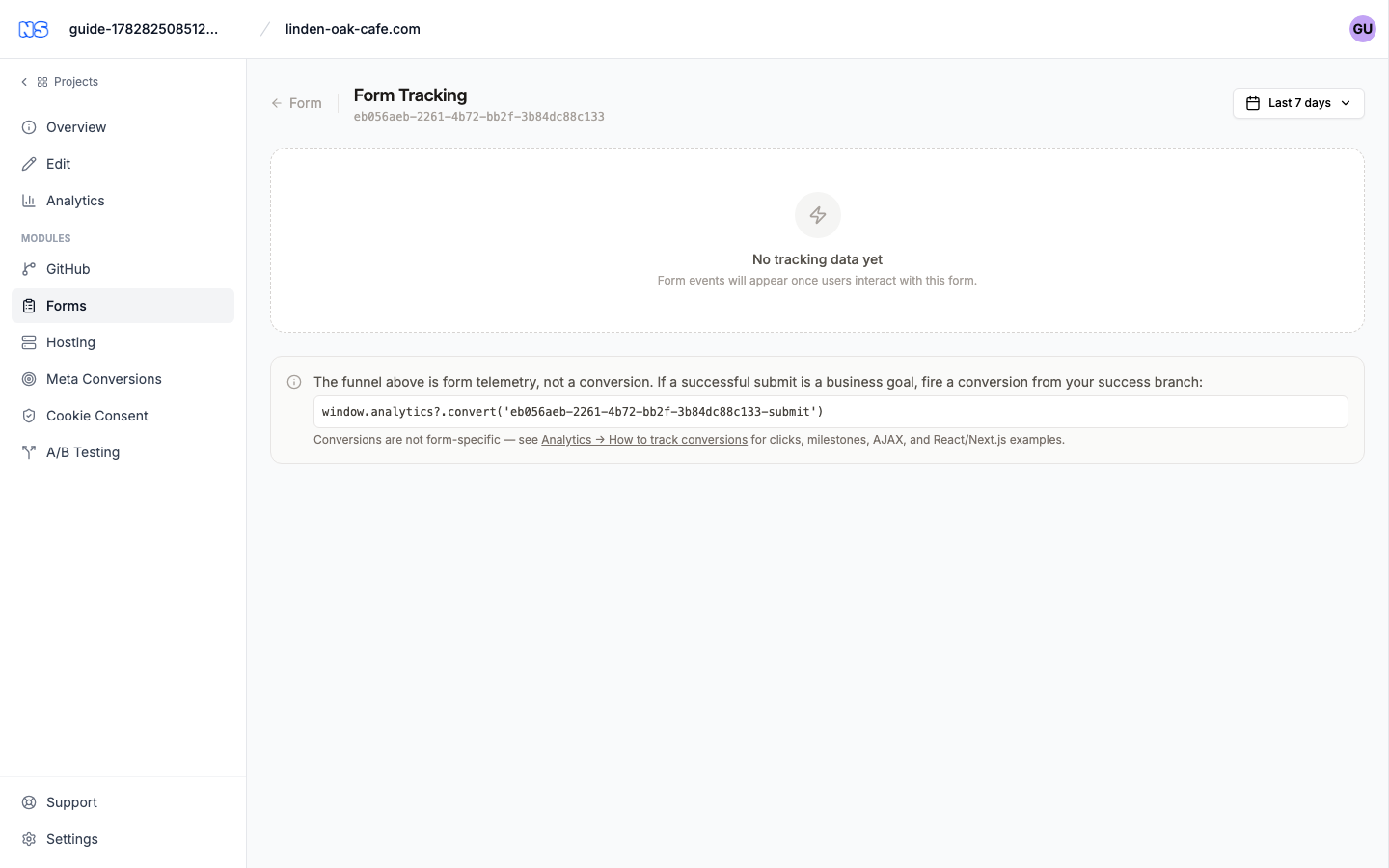
The page is headed Form Tracking with the form's full ID beneath it. A Form link in the top-left takes you back to the form's detail page.
Turn tracking on
There's no switch to flip. Tracking is automatic: as soon as the form is live on your nua site and visitors start using it, their submit events are recorded and appear here.
Until then the page shows No tracking data yet, with a note that Form events will appear once users interact with this form. If you expect data but see none, confirm the form is connected to your published site and that people have actually submitted it.
Choose a time period
Use the period selector in the top-right of the page to change the range the figures cover. All the stats, the funnel and the event log update to match the selected period.
Read the numbers
When there's data, four quick stats sit across the top:
| Stat | What it tells you |
|---|---|
| Conversion Rate | The share of outcomes that were successful submissions. |
| Spam Rate | The share of outcomes blocked as spam. |
| Error / Reject Rate | The share of outcomes that failed validation or errored. |
| Top Rejection Reason | The most common reason submissions were rejected, with how many times it happened. |
The submission funnel
The Submission Funnel breaks every tracked event into stages, each with a labelled bar sized to its count:
| Stage | Meaning |
|---|---|
| Submit Attempts | A visitor tried to send the form. |
| Client Rejections | The submission was rejected before sending — usually a validation problem in the visitor's browser. |
| Successful | The submission went through. |
| Errors | Something went wrong while submitting. |
| Spam Blocked | The submission was identified as spam and stopped. |
Alongside the funnel, a Conversion Rate card repeats the headline percentage with the underlying counts (successful submissions out of total outcomes).
Breakdowns
When there's enough event data, two further panels appear:
- Submissions by Page — the pages where the form is used most, each with its total events and how many failed, so you can see if one page performs worse than others.
- Submissions by Device — the split across desktop, mobile and tablet, each with its share and a success rate.
The event log
The Event Log lists the most recent individual events (newest first). Coloured badges across the header summarise how many of each type occurred.
If more than one kind of event is present, a Filter row lets you narrow the list — click All or any action (for example success or reject) to focus on just those events.
Each row shows the event type, the page it happened on, the device, the country, and how long ago it occurred. Click a row to expand it and reveal the full detail captured for that event:
| Detail | What it captures |
|---|---|
| Reason | Why a submission was rejected, when applicable. |
| Spam Score | A bar and number rating how spam-like the submission looked (higher is more suspicious). |
| Spam Reasons | The specific signals that flagged the submission. |
| Form Data | The fields the visitor submitted. |
| Device / Browser / Country | The visitor's device type, browser and country. |
Long lists start with the most recent events; use Show more events at the bottom to reveal the rest.
Note: For privacy, the form data shown in tracking is a short preview captured with the event — it isn't the complete stored submission. To read full submissions, open the form's detail page (see Working with form submissions).
Funnel data vs. conversions
A footnote on the page explains an important distinction: the funnel is form telemetry, not a business conversion. If a successful submit is a goal you want to count in your site analytics, fire a conversion from your form's success handler — the page shows a ready-made snippet using window.analytics?.convert(...) with a name based on your form.
Conversions aren't tied to a single form. For the full picture — tracking clicks, milestones and AJAX submissions — follow the Analytics → How to track conversions link on the tracking page.