Signing in
Get into the dashboard for the first time — sign up or sign in, complete onboarding, and accept the terms.
Everything in the dashboard sits behind a sign-in, so the first thing you'll do is log in. This page walks a brand-new user from the sign-in screen all the way to the Projects list.

Reaching the dashboard
Open dash.nuasite.com in your browser. If you're not signed in, the dashboard automatically sends you to the sign-in screen. You'll see the nua site logo above a small panel — this is where you sign in or create an account.
Creating an account
If this is your first visit, you need an account:
- On the sign-in panel, choose Sign Up (look for the "Don't have an account?" link).
- Enter your details and a password, then submit.
- Check your email — we send a verification link to confirm the address is yours. Open it to finish.
Tip: Prefer not to manage another password? Use GitHub to sign in instead. Click the GitHub option on the sign-in panel and authorize the connection — no separate password needed.
Signing in to an existing account
If you already have an account:
- Go to the sign-in screen.
- Enter your Email and Password, then submit. (Or use GitHub if that's how you signed up.)
Forgotten your password? Click Forgot your password? on the sign-in screen and we'll email you a reset link.
What happens right after you sign in
The first time you sign in, the dashboard sets up your workspace for you. You'll briefly see a loading spinner while this onboarding step runs in the background. It quietly:
- creates and activates an organization for you (your workspace), so you have somewhere to keep projects, and
- checks whether you were invited to join an existing organization.
You don't need to do anything during this step — it finishes on its own and moves you forward automatically.
If you were invited to a team
If someone invited you to their organization, onboarding sends you to an accept invitation screen instead. Follow the prompt to join their workspace. Afterwards you'll find that organization available in the organization switcher at the top of the dashboard. You can read more about switching workspaces in the welcome tour.
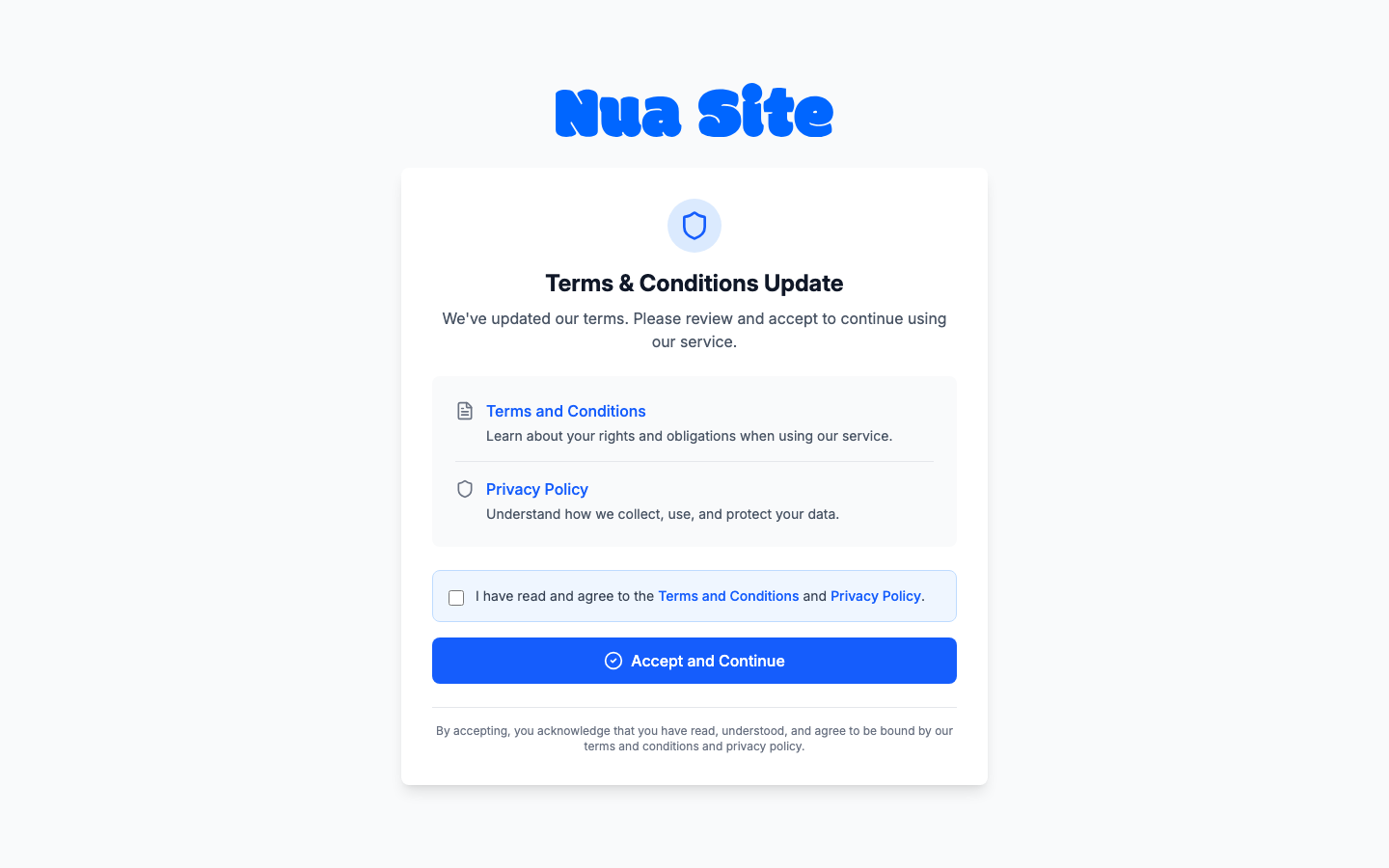
Accepting the terms & conditions
Before you can use the dashboard, you'll be asked to agree to our terms. This appears as a Terms & Conditions Update screen whenever there's something new to accept.
- Review the linked Terms and Conditions and Privacy Policy — both open in a new tab so you don't lose your place.
- Tick the box that reads I have read and agree to the Terms and Conditions and Privacy Policy.
- Click Accept and Continue.
That's it — you're taken straight to your Projects list, ready to start.
Note: You'll only see this screen when the terms are new or have changed. On most sign-ins you'll go straight to the dashboard.
You're in
Once you land on Projects, you're fully signed in. If you don't have any sites yet, you'll see a Create Your First Project prompt; otherwise you'll see your existing projects as cards.
From here you can:
- explore the layout in the welcome tour,
- set up your personal details in your account, or
- create your first project.
Tip: To sign out at any time, open your account menu (your avatar in the top-right corner) and choose Sign Out.