Project settings
Manage integrations, view project details, and use the danger zone to unlink or delete a project.
The Settings page is where you manage a project's configuration and find its key details. To open it, click Settings at the bottom of the project sidebar at dash.nuasite.com. The page is grouped into four sections.
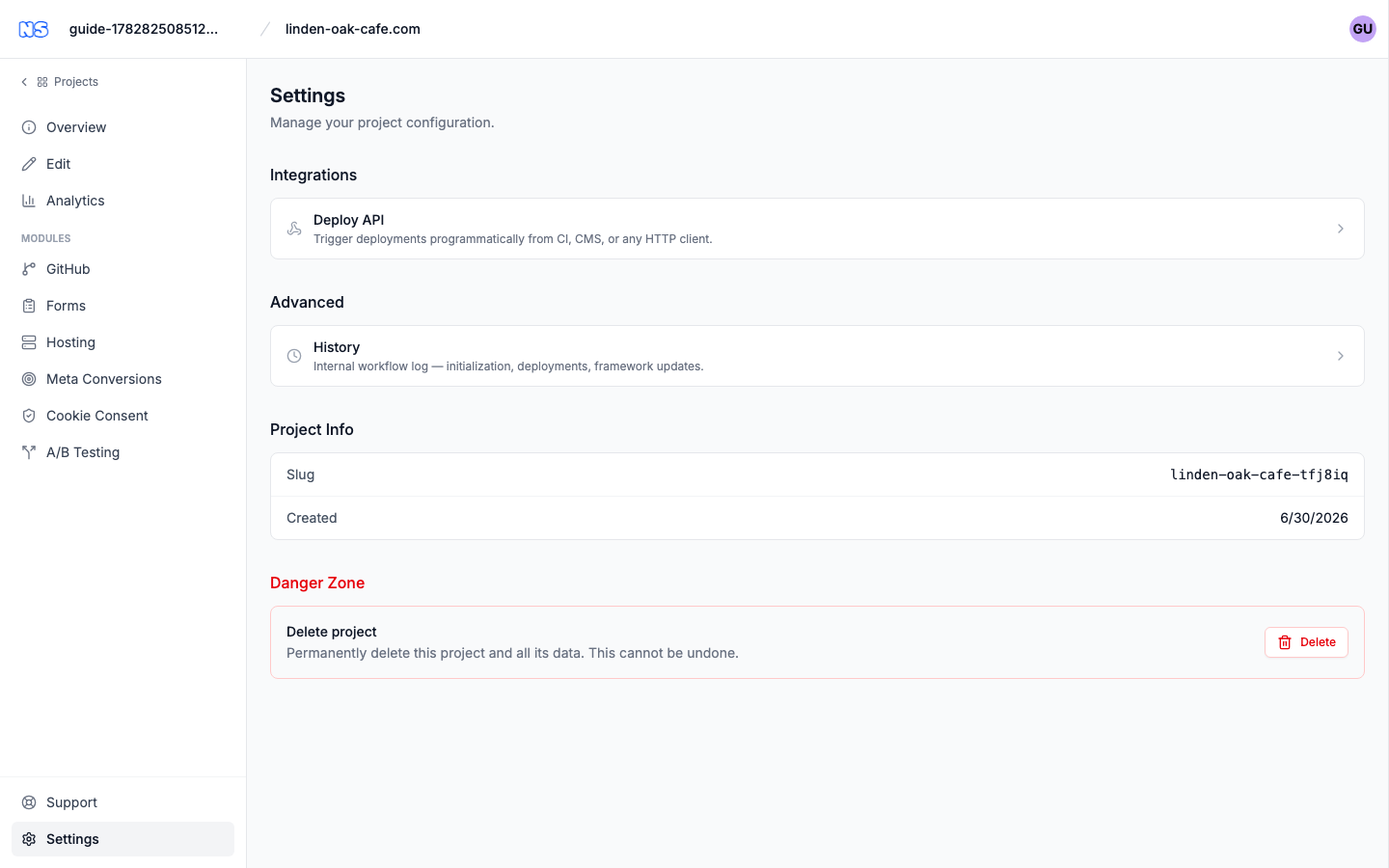
Integrations
| Setting | What it does |
|---|---|
| Deploy API | Trigger deployments programmatically from CI, a CMS, or any HTTP client. Click it to open the Deploy API configuration. |
Advanced
| Setting | What it does |
|---|---|
| History | An internal workflow log of initialization, deployments, and framework updates. Useful when you want to see exactly what happened behind the scenes. |
Deployment
This section appears only when the project is connected to an external GitHub repository.
| Setting | What it does |
|---|---|
| Disable managed builds | Turn off our build and deploy for this project. Publishing still pushes your changes to your Git repository, so your own CI (for example, GitHub Actions) deploys the site. |
Use it when you want to keep editing in the CMS but host the site yourself. Toggle the switch on to disable managed builds; toggle it off to hand deployment back to us.
While managed builds are disabled:
- Publishing from the CMS still commits and pushes to your repository — only our build step is skipped.
- Pushes to your repository no longer trigger a deploy on our side, and the Deploy API returns a
builds_disablederror. - No preview or live URL is produced on our hosting, so the Preview and Visit buttons stay hidden until a managed deployment exists.
Note: This option is only available for projects on an external repository. Managed-repository projects always deploy through us.
Project Info
This section shows read-only details about your project:
| Field | What it shows |
|---|---|
| Slug | The project's unique short identifier used in its web address. |
| Repository | The connected GitHub repository, if any. Click to open it on GitHub. |
| Source website | The original website address the project was created from, if recorded. Click to open it. |
| Created | The date the project was created. |
Note: Some rows only appear when the information exists — for example, Repository is shown only once a GitHub repository is connected, and Source website only when a source address was recorded.
Danger Zone
The actions here are destructive, so each one asks you to confirm in a dialog before it runs.
Unlink from auto deploys
This option appears only when the project is connected to an external GitHub repository.
- Click Unlink.
- In the Unlink external repository? dialog, confirm with Unlink repository.
The project disconnects from the external repository and reverts to the managed repository. Automatic deploys triggered by pushes to the external repo stop. You can reconnect later from the GitHub screen. After you confirm, the unlink status page tracks the process.
Delete project
- Click Delete.
- In the Delete project? dialog, confirm with Delete project.
Warning: Deleting a project permanently removes it and all associated data — including deployments, pages, workflows, and forms. This cannot be undone. After deletion you are returned to the Projects page.
Related guides
- Create a site — set up a project and connect a repository.
- Project overview — read deployment status and navigate every feature.