Project overview
Read your project's deployment status, domains, recent activity, and find every project feature in the sidebar.
The Overview is the home screen for a single project. It shows whether your site is live, where it can be reached, and what has happened recently — and the project sidebar next to it links to every other feature. To open it, click a project from the Projects page at dash.nuasite.com.
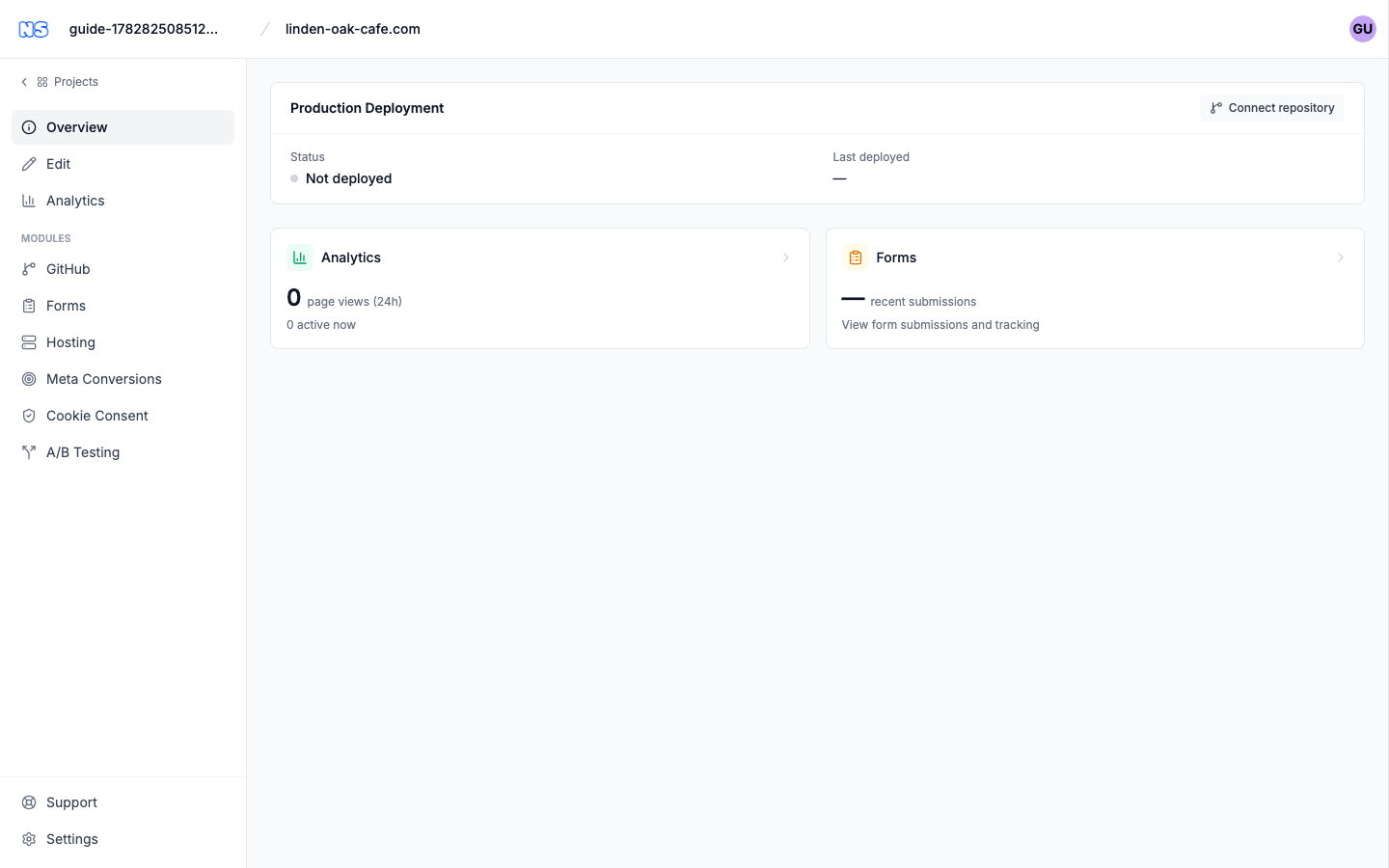
The top bar
Across the top of every project screen you'll find the project name and, when a preview is available, an Open Preview link that opens your site's development preview in a new tab.
Status banners
Depending on where your project is in its life, a colored banner may appear at the top of the overview:
| Banner | Meaning |
|---|---|
| Project locked | You can preview the homepage and snippets, but full code access and GitHub need unlocking. |
| Your project is ready | Your draft is built — review and finalize it to save your changes. |
| Continue building | Setup is in progress; pick up where you left off. |
Each banner has a button — Go to session to return to your workspace, or Start new session if the previous one is no longer available.
Production Deployment
The Production Deployment card is the heart of the overview. It tells you the state of your live site:
| Field | What it shows |
|---|---|
| Status | Building while a deploy is in progress, Ready once your site is live, or Not deployed before the first publish. |
| Last deployed | How long ago your site was last published. |
| URL | The web address where your site is live. Click it to open the site. |
| Domains | Any custom domains connected to the project. Each one opens in a new tab. |
| Latest commit | The message from the most recent change being deployed. |
In the top-right corner of the card you'll find quick actions:
- Visit – open your live site in a new tab.
- Repository – open the connected GitHub repository, or Connect repository if none is linked yet (see Create a site).
Quick stats
Below the deployment card, two cards summarize key modules and link straight to them:
- Analytics – page views in the last 24 hours and how many visitors are active now.
- Forms – recent form submissions and tracking.
Click either card to open that feature in full.
"Get your site live" checklist
Before your site is published, a Get your site live checklist helps you finish setup. It tracks four steps and offers a button next to any that are still open:
- Create your project
- Connect to GitHub
- Set up a custom domain — with a Set up button.
- Deploy your website — with a Deploy button.
Completed steps are ticked and crossed off. The checklist disappears once your site is deployed.
Recent activity
The Recent activity card lists your most recent edits and publishes together, newest first:
- Edited <name> — an editing session, with how long ago it happened and a note if it has unpublished changes. Click it to reopen that session.
- Published <name> — a deployment, with its status (Published, Publishing, or Cancelled), the branch, whether it's live or a preview, and how it was triggered (for example a GitHub push, a manual trigger, or a CMS update). If the deploy has a public address, clicking the row opens it.
The project sidebar
The sidebar on the left is how you move between every part of your project. At the very top, Projects takes you back to the dashboard.
Main
- Overview – this page.
- Edit – open or resume your editing session (shown for editable projects).
- Analytics – visitor and performance stats.
Modules
- GitHub – connect or move the project's repository.
- Forms – view form submissions and tracking.
- Hosting – manage hosting and custom domains.
- Meta Conversions – set up Meta conversion tracking.
- Cookie Consent – manage your cookie-consent banner.
- A/B Testing – run experiments on your site.
Bottom
- Support – open the support panel for help.
- Settings – manage the project's configuration (see project settings).
Note: Some modules only appear when the matching feature is turned on for your account, so your sidebar may show a shorter list.