Organizations
What an organization is in nua site, how to switch between them, and what lives on the organization page.
Everything you do in the nua site dashboard happens inside an organization. An organization owns your projects, holds your shared credit balance, and groups the people who work together. When you sign in at dash.nuasite.com, you are always working within one active organization at a time.
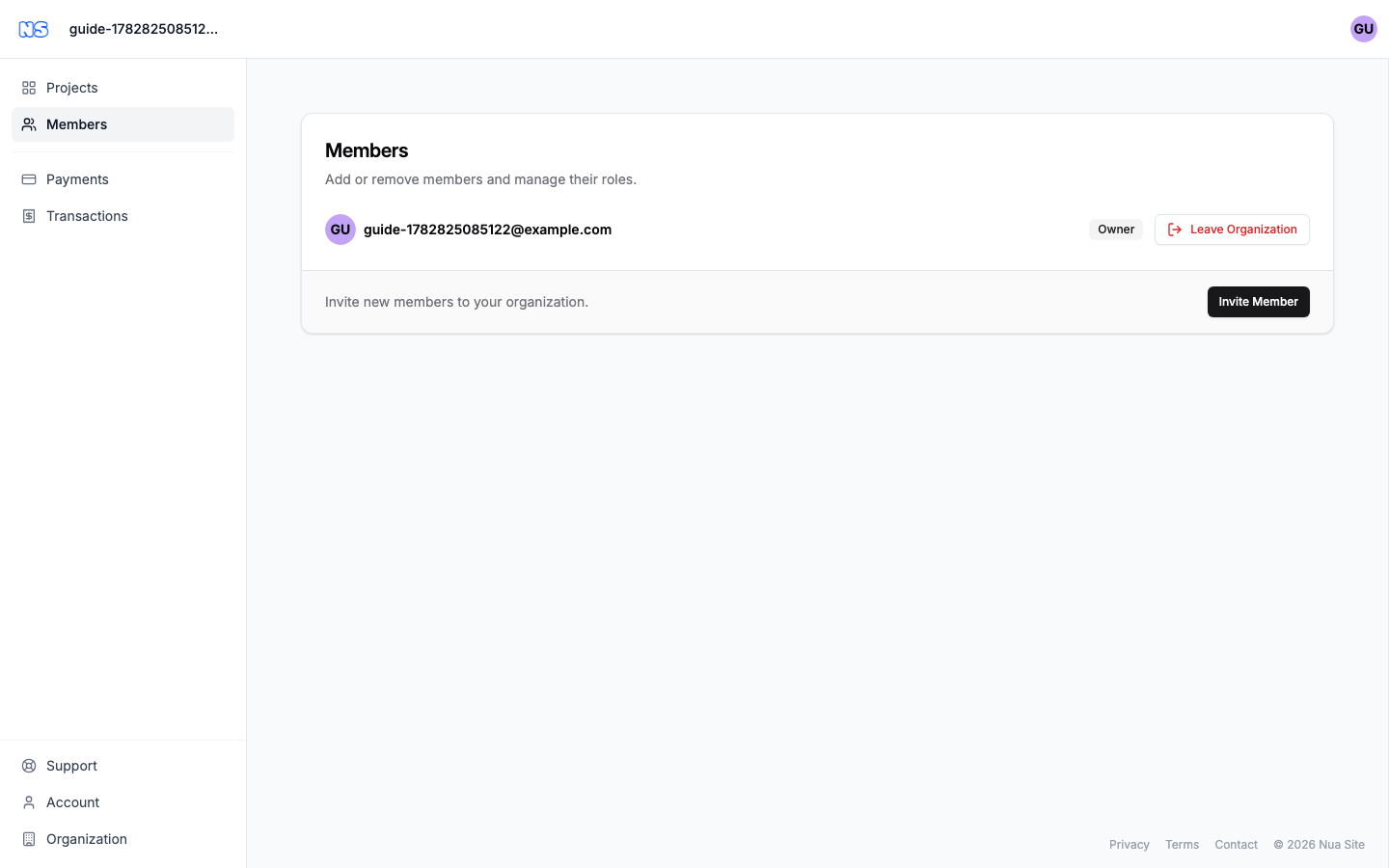
What an organization holds
A single organization brings together:
- Members — the people who can access the organization and its projects, each with a role.
- Projects — the sites you build and host. Projects belong to the organization, not to an individual person.
- Credit balance — a shared pool of credit used across the organization's projects. See Credit and top-up.
- Billing and payment details — the payment method, invoices, and transaction history.
Switching between organizations
If you belong to more than one organization, you switch between them with the organization switcher in the top bar — the control that shows your current organization's name with a small up/down chevron next to it.
- Click the organization switcher.
- The dropdown lists your active organization under Current, with the other organizations you belong to under Switch to.
- Click any other organization to make it active. The dashboard reloads in the context of that organization.
From the same dropdown you can also choose Create organization to start a brand-new organization.
If you belong to only one organization, the switcher simply shows its name as a label — there is nothing to switch to. You can still create or leave organizations from Account → Organizations.
Note: The dashboard only works with organizations — there is no separate "personal account" workspace.
Organization areas
Your organization's areas are reached from the left sidebar of the dashboard. Depending on your role you will see some or all of these:
| Area | Sidebar item | What you manage there |
|---|---|---|
| Settings | Organization | Organization name, slug (its short URL handle), logo, and deleting the organization. |
| Payments | Payments | Your credit balance, pricing, top-ups, vouchers, and billing. See Credit and top-up. |
| Transactions | Transactions | Your history of top-ups and usage charges. See Transactions. |
| Members | Members | The people in the organization and their roles. |
Click a sidebar item to open that area. The Organization item opens the organization's settings.
Note: Which areas you see depends on your role. Settings (the Organization item), Payments, and Transactions are available to admins and owners — for everyone else they are hidden from the sidebar. The Members area is visible to every member.
Members and roles
The Members section lists everyone in the organization, sorted by when they joined. Each person has one of three roles:
| Role | Typical use |
|---|---|
| Member | Can work in the organization but cannot manage settings, payments, or transactions. |
| Admin | Can manage settings, payments, transactions, and invite people. |
| Owner | Highest level of access; the role held by whoever created the organization. |
Inviting someone
- Go to the Members section.
- Click Invite Member (top-right of the members card).
- Enter the person's email and pick the role to grant them.
- Send the invitation. They will receive an email to accept and join.
Tip: The Invite Member button is only active if your role allows inviting people. If it is greyed out, ask an admin or owner to send the invite.
To change someone's role or remove them, use the controls on their row in the members list (available to admins and owners).
Organization settings
In the Settings section, admins and owners can:
- Organization name — update the display name.
- Slug — change the short handle used in the organization's URLs.
- Logo — upload or replace the organization's logo (when logos are enabled).
- Delete organization — permanently remove the organization.
Warning: Deleting an organization is permanent and removes its projects and data. Only do this if you are certain.